Automatically Creating Readable Python Codes

In order to create code, that can be traceable and readable for everyone comments are essential. But there are also style guides to follow in order to create a consistent environment in your code. In Python language, this is regulated with a style guide known as PEP 8. I recommend you to check it out, it has some interesting insights. But if you clicked the link, you will see that it is actually pretty long. To read all of it and to be able to write code as it is intended in this guideline seems to be too much work.

But autopep8 comes to help! It is an automatic formatter to make your code conform with the PEP8. In order to install;

$ pip install --upgrade autopep8

To fix your code with autopep8;

$ autopep8 --in-place <filename>

This one will only fix the whitespace issues. But in order to fix other type of style issues –aggressive option should be used.

$ autopep8 --in-place --aggressive --aggressive <filename>

Multiple usage leads to more aggressive fix. Further options and more comments on the type of issues can be seen in the project page.

Headless Raspberry Pi 4 with 3.5inch RPi Display

Even though it sounds contradictory, one needs to configure a headless raspberry pi in order to make use of these type of display without a HDMI cable or connector(or even an external screen) laying around. We will follow official RasPi sources to configure the SSH and wifi connection. By default, SSH is not available on raspberry pi. To make it available:

  • add an empty file without an extension named ‘ssh’ to /boot

Now we will add the wifi connection. If you have an ethernet cable together with a switch that you can connect your host, this part is not necessary.

  • create a file named wpa_supplicant.confand inside of it fill:
ctrl_interface=DIR=/var/run/wpa_supplicant GROUP=netdev
update_config=1
country=<Insert 2 letter ISO 3166-1 country code here>

network={
 ssid="<Name of your wireless LAN>"
 psk="<Password for your wireless LAN>"
}
  • country code can be find in wikipedia. For example, for Germany, it is DE. For example, if your wifi name is Berliner_Kindl and your password is bier. Than conf file should look like this:
ctrl_interface=DIR=/var/run/wpa_supplicant GROUP=netdev
update_config=1
country=DE

network={
 ssid="Berliner_Kindl"
 psk="bier"
}
  • Now we need to insert the SD Card to raspberry and wait for it to connect to wifi network(around 5min). One can check from the modem’s connection page and under DHCP Clients List. I would like to add nmap method to here also but I can not make it work again these days…
  • Install nmap fwith the command:
$ sudo apt-get install nmap
  • check the ip address of your device with command:
$ ip a
  • This should give you an address like 123.00.0.00. Than use this command to map all the devices connected to your network:
$ nmap -sP 123.00.0.00/24
  • This will sometimes give a list of ip address together with names, but sometimes not. I believe this depends on the network settings. In case, nmap can not resolve the request than you can try to list the ips before connecting the raspberry pi and after connecting it.

After you get the ip, now it is time to connect to the raspberry pi. Write this on terminal of your host computer(of course changing to ip address of raspberry pi):

$ ssh pi@123.00.0.00
  • The default username is pi and default password is raspberry. Probably, it is a good idea to change this after log in.

Now it is time to configure the RPi 3.5inch display. Write this commands on your raspberry pi SSH window:

sudo rm -rf LCD-show
git clone https://github.com/goodtft/LCD-show.git
chmod -R 755 LCD-show
cd LCD-show/
sudo ./LCD35-show

To calibrate the screen, follow the code down:

cd LCD-show/
sudo dpkg -i -B xinput-calibrator_0.7.5-1_armhf.deb

I would like to install OBS on Raspberry Pi but it is not supported by default unfortunately. I would like to build following this and this pages to see if it is possible. Having a higher memory and better cooling option seems to be a must.

Installing ffmpeg from testing(Bullseye) on Debian 10 Buster[failed]

So one of the problems I am encountering these days is that I want to use this nice package spotDL in my Debian 10 Buster system. But unfortunately spotDL depends on the fmmpeg version of 4.2 but Debian Buster stable is currently only supporting 4.1.6.

To tackle this issue first I made a horrible mistake of trying to add the testing repositories to my sources.list file as suggested in several sources. Of course, mixing testing and stable is something only a beginner such as me will do. As soon as, I run upgraded my upgrade list, I prompted with a question. One should REALLY REALLY read and know what these questions are asking, especially if you are dealing with your sources.list. This was not the case with me and my system starts a full update from testing repositories! Certainly I already created a FrankenDebian. Let’s check what the authors on this infamous page says:

First of all, apt-get upgrade default behavior is to upgrade any installed package to the highest available version. If, for example, you configure the bullseye archive on a buster system, APT will try to upgrade almost all packages to bullseye.

Smart people. I will update later on how I was able to not totally break up my system but I downgraded most of the packages with the command:

$ sudo apt-get install <package-name>/buster

I learned my lesson in hard way. Then, I come across with very nice thing called backports. I added up the the repository for backports

$ deb http://deb.debian.org/debian buster-backports main
$ sudo apt-get update

And run the command for installation of backports version of ffmpeg, only to find ou that it just doesn’t exists.

$ sudo apt-get install ffmpeg/buster-backports

Now the next step was to decide if I should fully upgrade to bullseye, testing version. I thought probably it will be way too hard and it will be the case that my non-Debian packages will/can be gone. As this is not a server but a personal computer, I rely heavily on my kind of non-Debian packages. I really do not have any idea, how server side deals with this, but that is not the issue here.

So I come across with the idea, that you can backport packages my yourself. I will try this in near future, even though it looks pretty complicated.

Edit:

So it was way much more easy than I understand. In this thread, the solution is given:

sudo apt remove ffmpeg
sudo add-apt-repository ppa:jonathonf/ffmpeg-4
sudo apt install ffmpeg
ffmpeg -version


Adding a Trimmer to Nano Quad Controller for Volume Control

Model name is X165

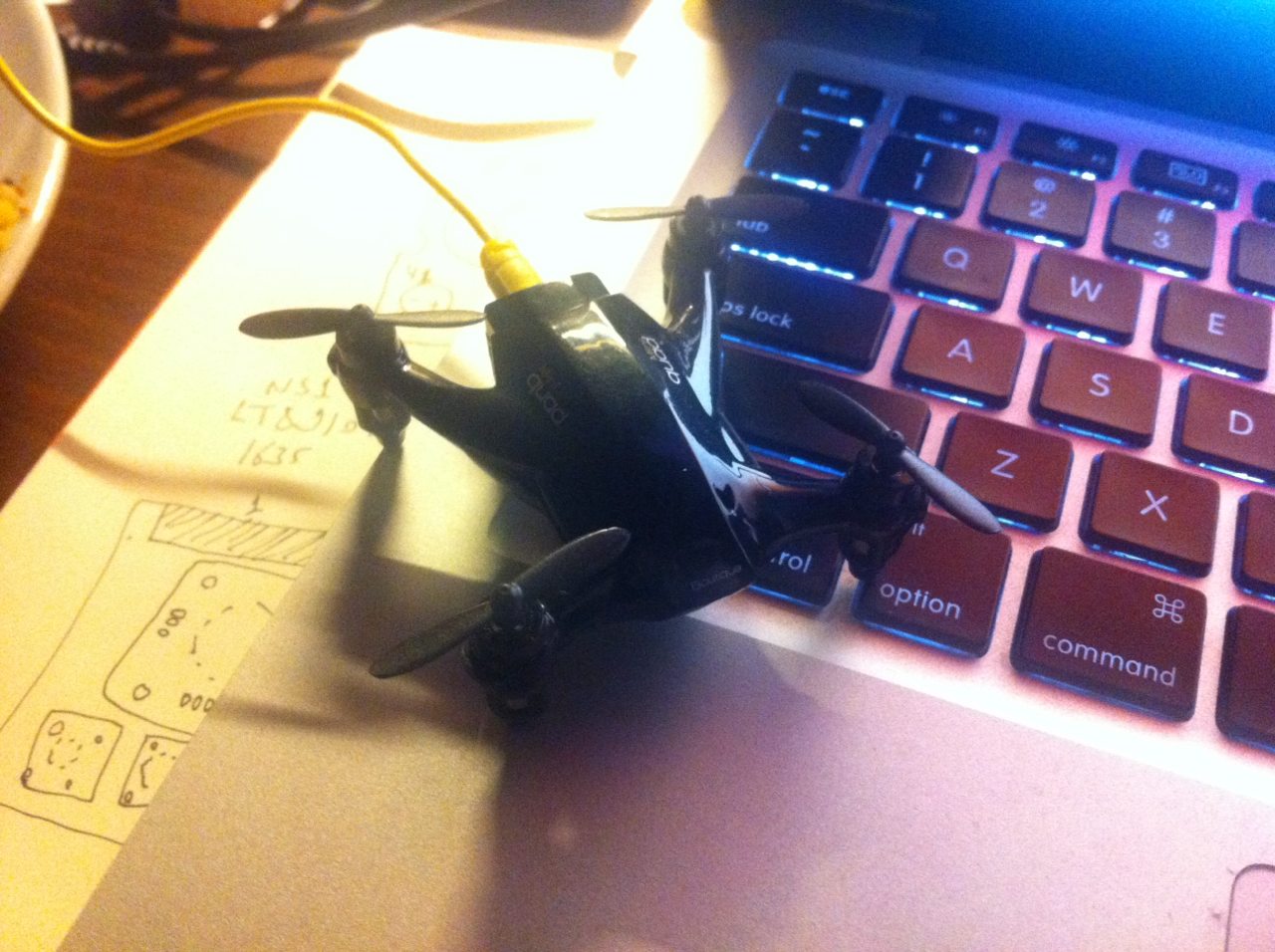
This little guy is a present from a lovely friend, who probably knows my love with the little complex machines. I never thought about having this little machines anymore because, at least for like ten years or something I broke every single one of the flying machines that I have had after one or two flights. So this guy come up as a bold one and didn’t shattered to pieces in the past five days.

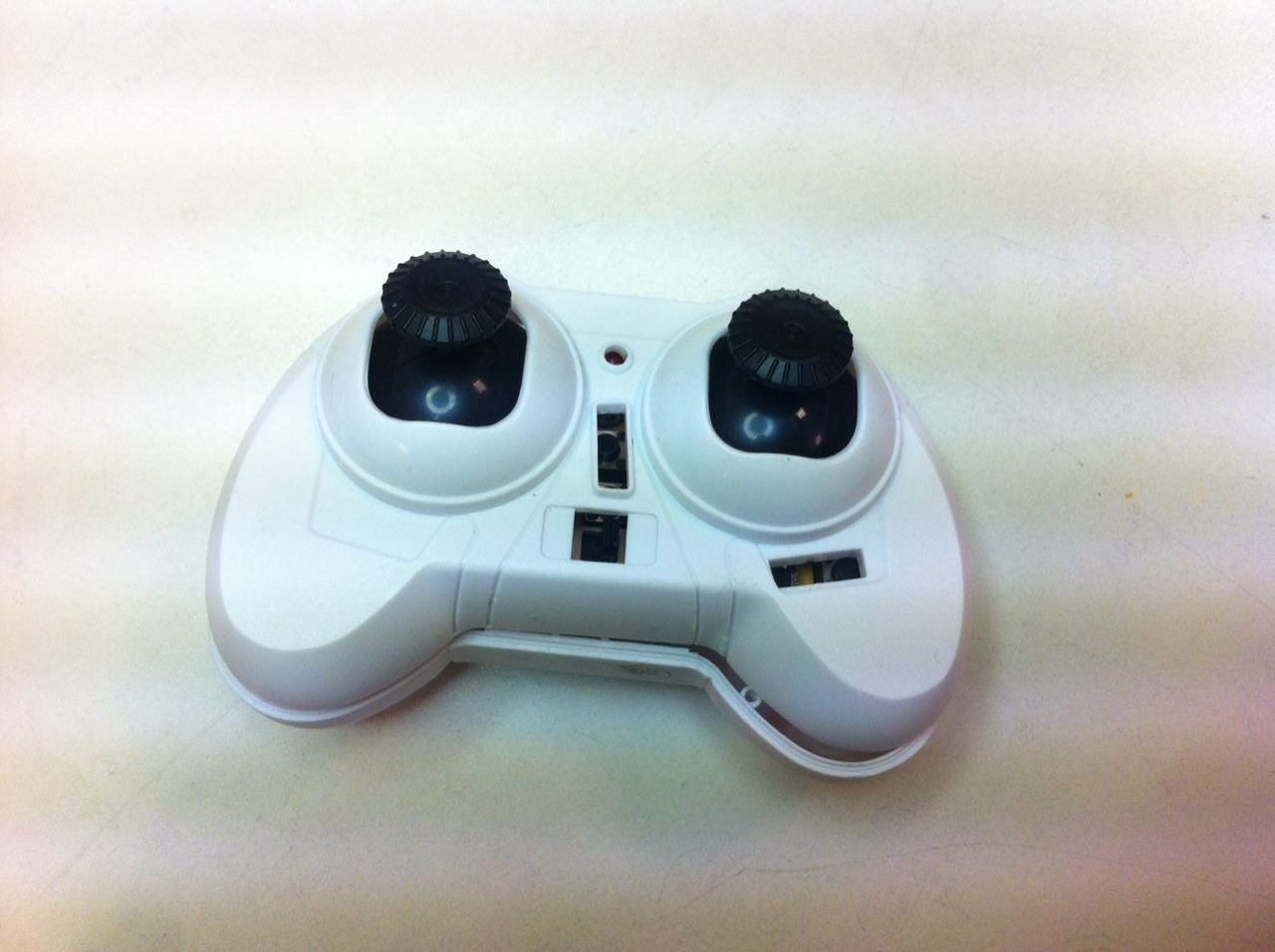
But it got a little problem that the buzzer, which alerts the trimming and mode changing inside the controller is bit too noisy. So already impatient for tearing apart the toy, I decided to add a trimmer to buzzer. It turns out to be look good in the end!

Unscrewed controller

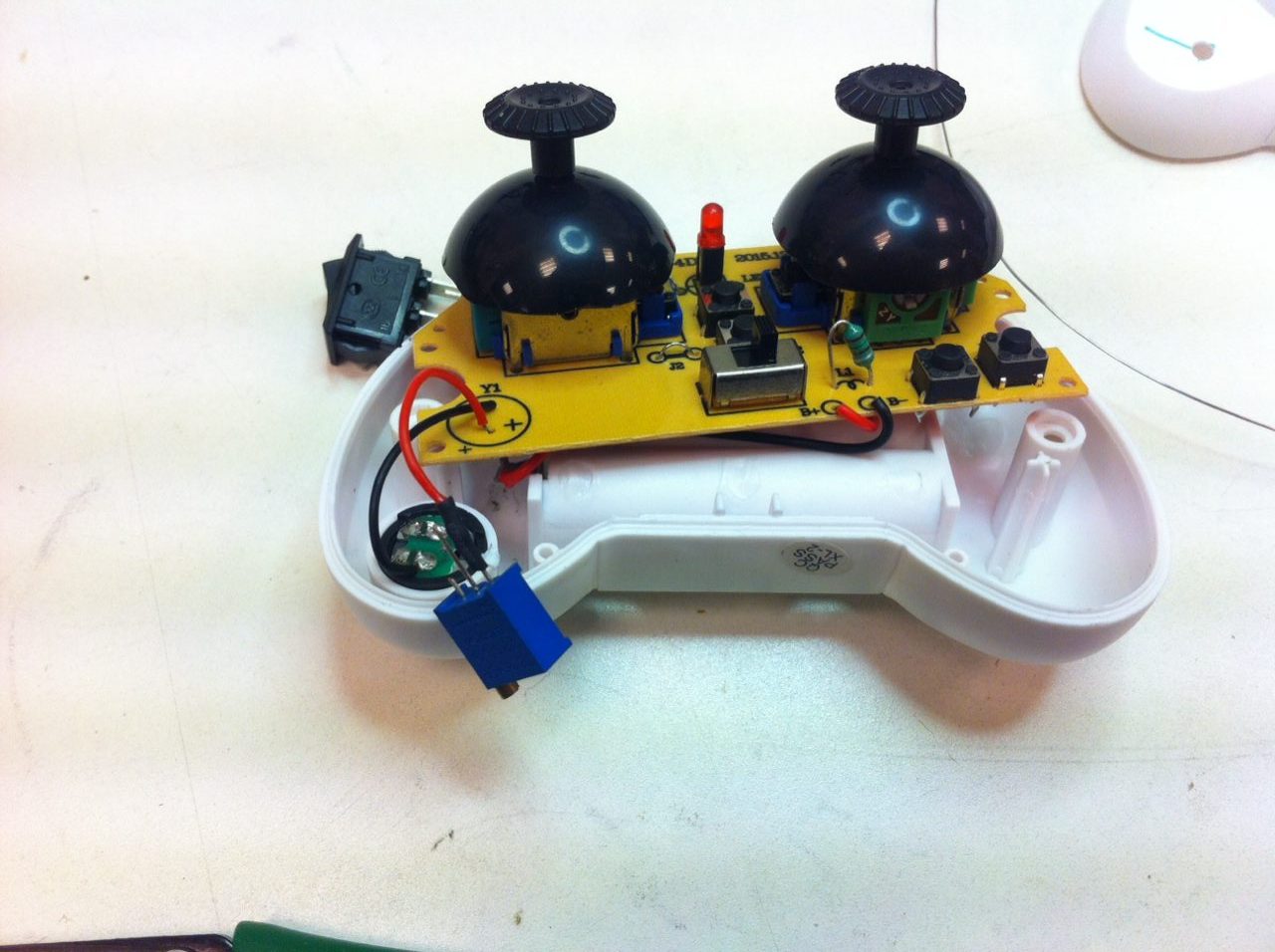
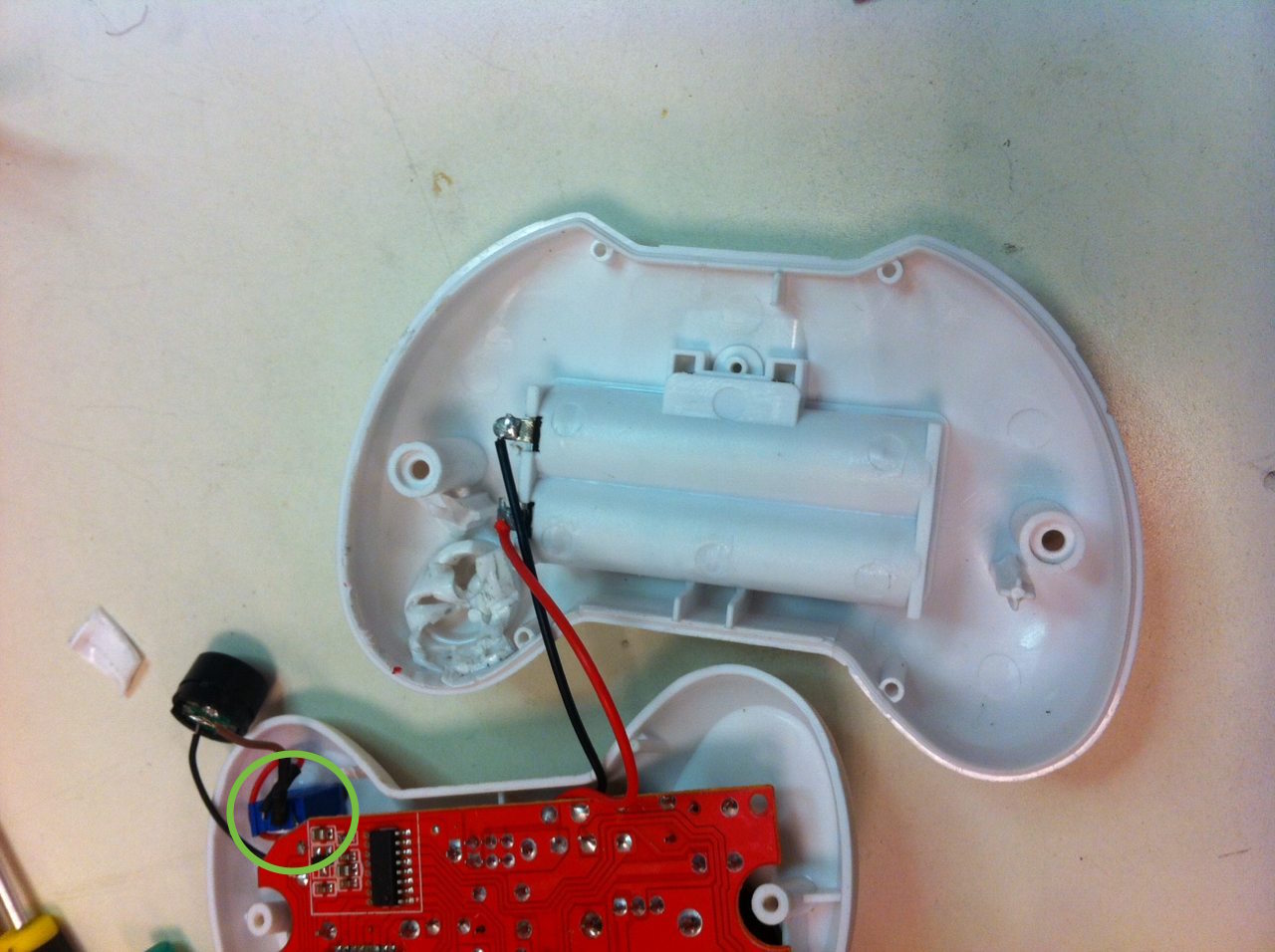
Signal cable desoldered from buzzer and soldered to third pin of trimmer.

Another cable soldered between the buzzer positive pin and the second pin of trimmer.

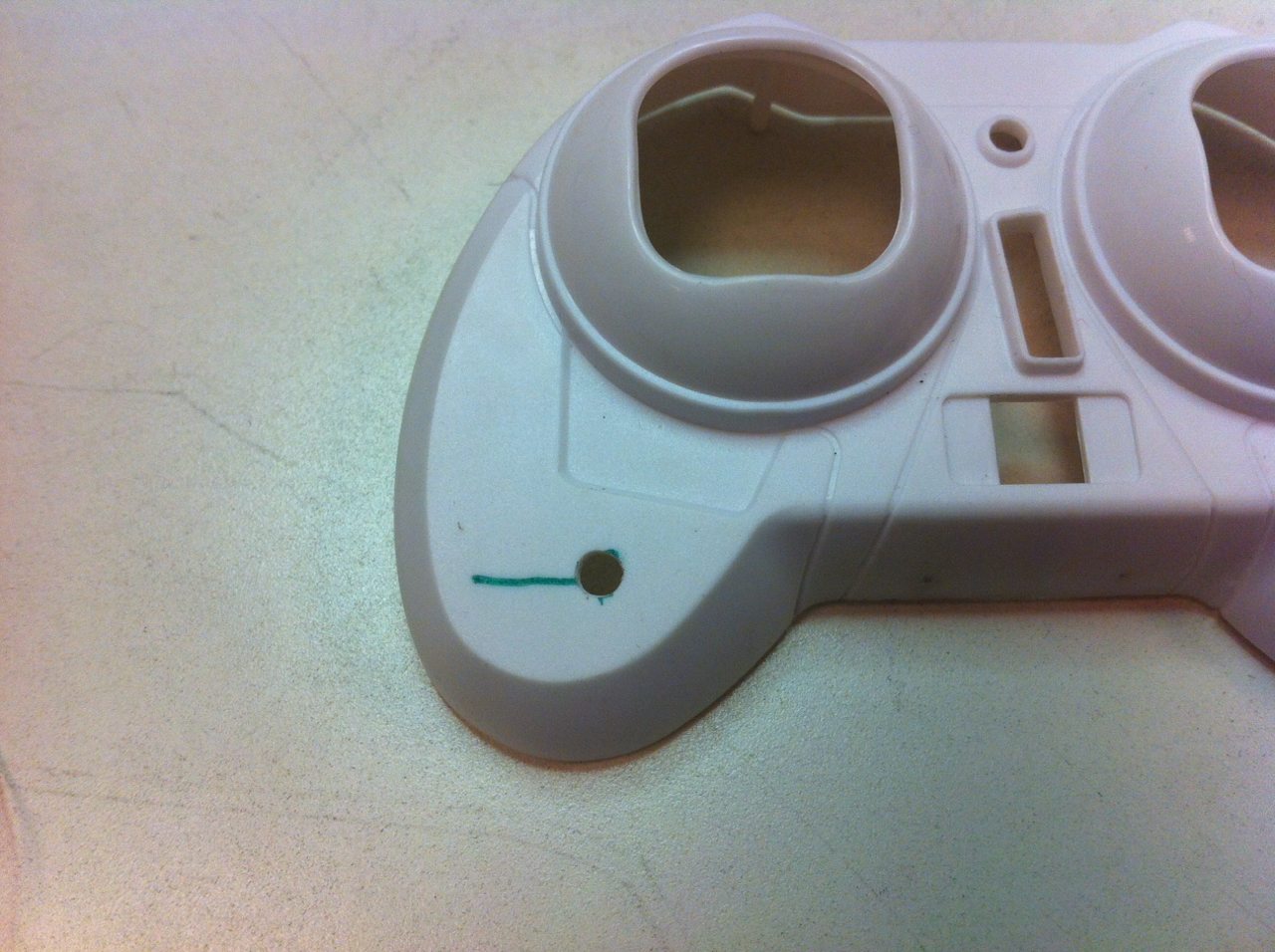
Drilled a hole with a 4′ drill bit.

I glued the trimmer to controller. But In order to place the PCB I had to cut the end of it with a metal scissor. Fortunately this part do not have a trace or component.

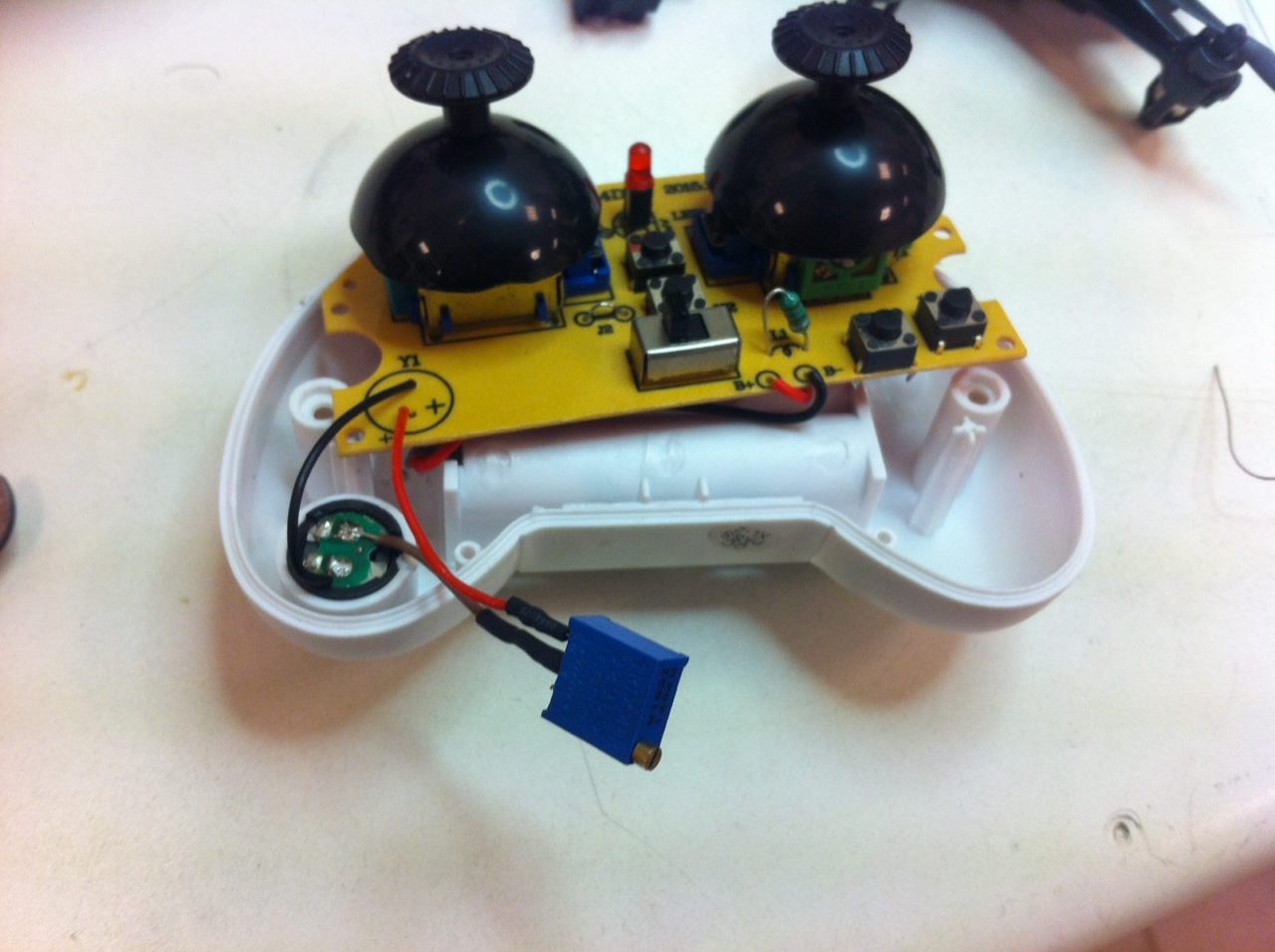
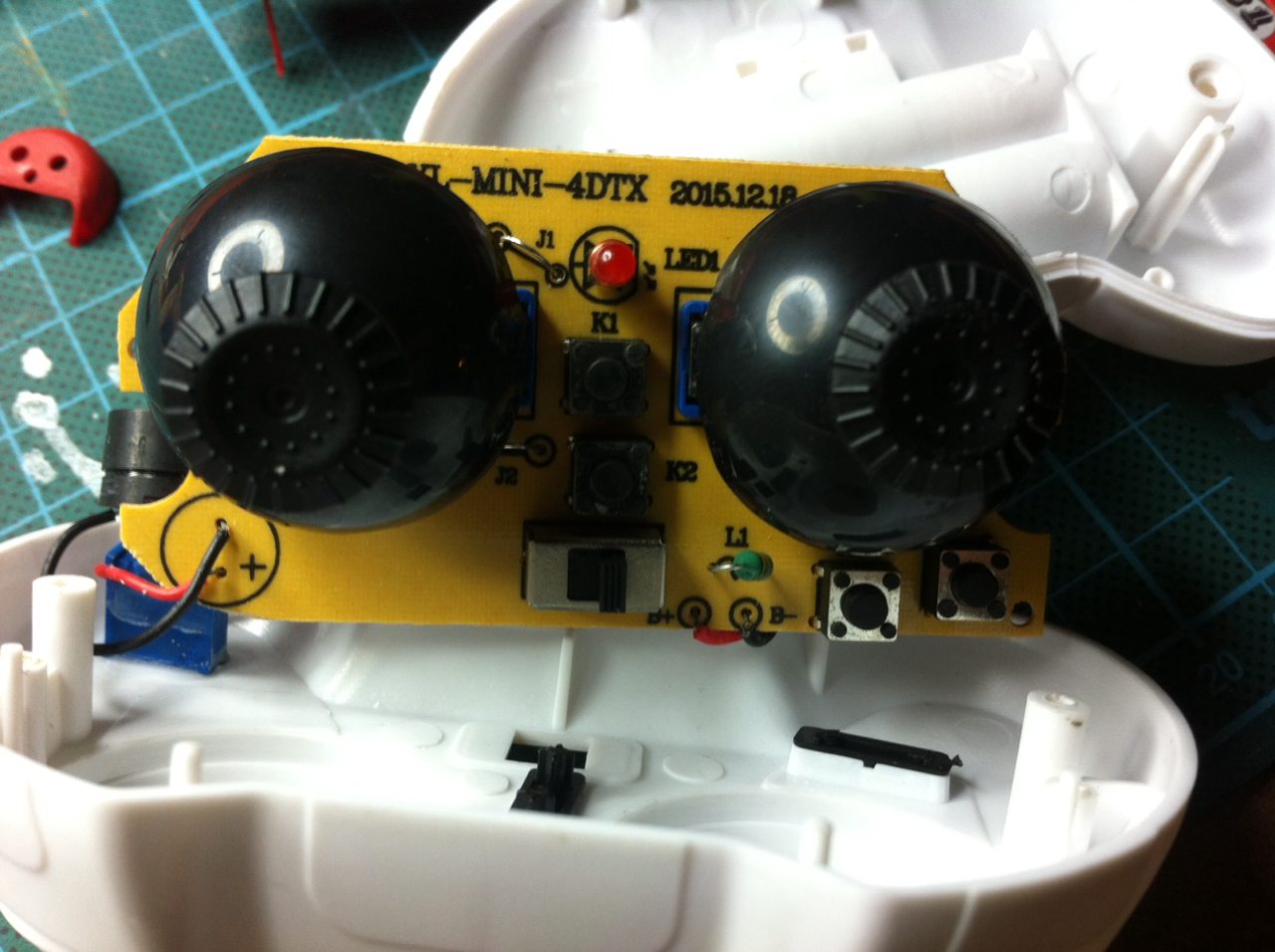
Another view of the trimmer and PCB before closing it.

The end! Though I didn’t documented it, I had a problem with space covered by trimmer’s body. I cutted/destroyed the recess of buzzer in order to fit everything in.

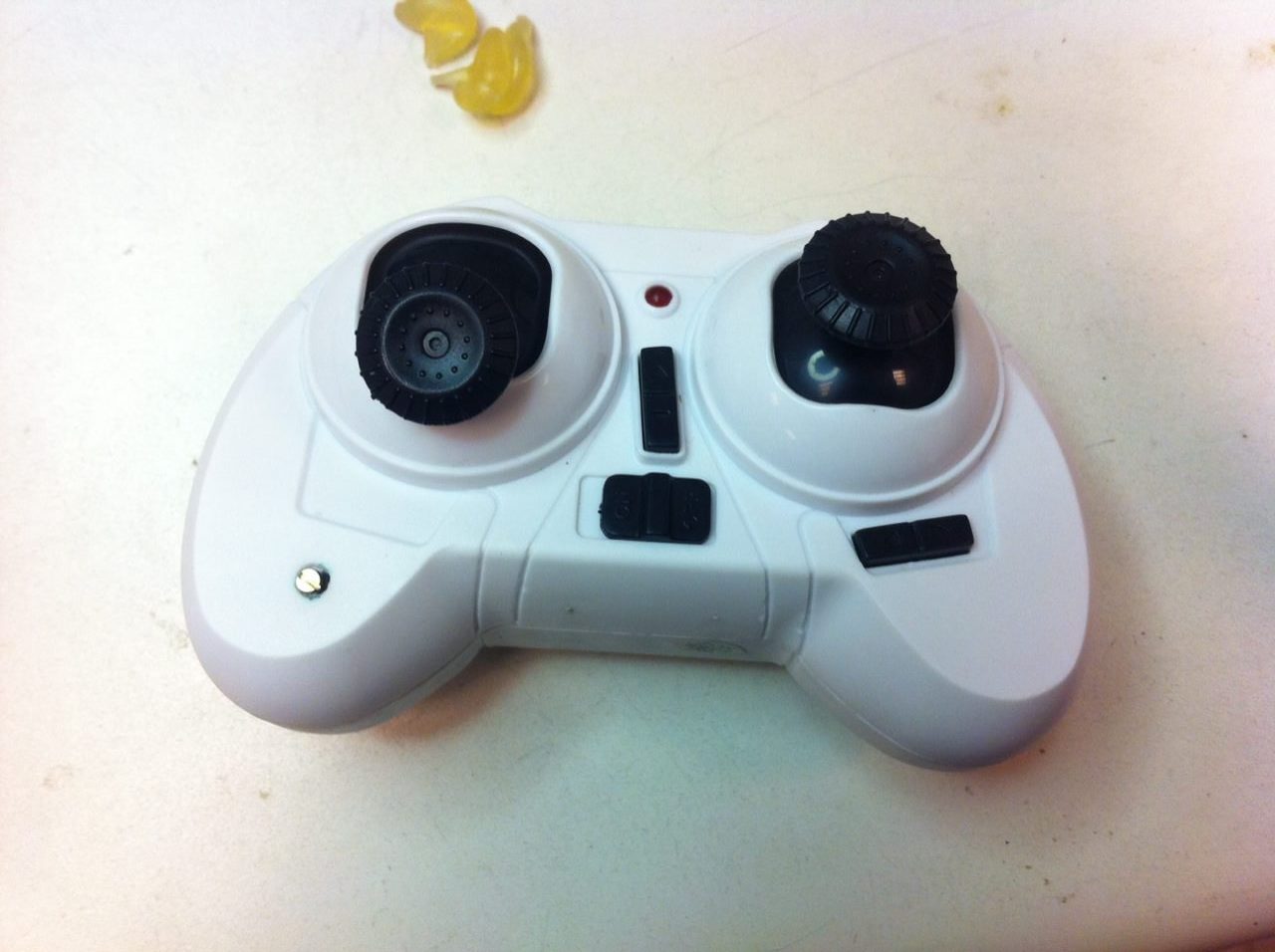
Feels more completed 🙂

Gözlerden Uzak Bir İnternet İçin İlk Adım ya da Nasıl Muktedirlerin Gözüne Şiş Soktum?-1. Bölüm Tarayıcı Seçimi ve Eklentiler

Tarayıcı seçimi;
Firefox
Chromium
TOR Browser
Seamonkey

Bu belirttiğim tarayıcıların hepsi özgür lisanslı, açık kaynaklı seçenekler. Ben firefox kullanıyorum, onun için firefox üzerinden devam edeceğim ama bildiğim kadarıyla kullanacağımız eklentilerin hepsi chromium için de var. Tor Browser için zaten bu eklentilere ihtiyaç yok.

Öncelikle TOR kullanmıyorsanız, bağlantınızı güvenilir kılmak adına bir VPN kullanmanızı hararetle tavsiye ederim. Eğer böyle bir imkan yoksa, TOR en iyi seçenek. Bir de tabi linux bir makine çalıştırmakta sadece etik olarak değil güvenlik açısından da zorunluluk.

Bir de küçük bir not düşeyim; Chrome açık kaynak bir yazılım değildir! Google tarafından kapatılmış ve kendi çıkarlarına hizmet eden bir tarayıcıdır. Chromium ise Chrome’un açık kaynak versiyonudur.

Şimdi Firefox’da kullandığım eklentiler şunlar;
NoScript:
Noscript, sitelerdeki javascript/flash/java eklentilerini engelleyen bir eklenti. Edward Snowden başkan da kendisini önermiş.

Dephormation:
Dephormation, TTNET’in gezinti servisiyle internetinizi ‘kişiselleştirmeyi’ amaçlıyor. Yani bu datalarınızı kullanıp, depolanması haliyle sizin de fişlenmeniz demek. İnternet servis sağlayıcınız TTNET ise kullanmakta fayda var. Bu arada bu eklenti bildiğim kadarıyla özgür lisanslı değil, bir şirketin ürünü. Bu yüzden artık çok da tavsiye etmiyorum zira zaten Adblock Edge ve NoScript phorm’u engellemek için yeterli.

HTTPS Everywhere:
Parti cephemiz electronics frontier foundation öncülüğünde yazılmış HTTPS everywhere, girdiğiniz sitelerin eğer https versiyonu varsa sizi ona yönlendiriyor. Çünkü genellikle anlamadığım bir şekilde sitelerin çoğu http verisyonları ile açılıyor. HTTP uzantılı siteler ise, HTTPS’in aksine şifreli iletişim sağlamıyor.

AdBlock Edge:
Bunu benim dışımda herkes biliyormuş. Yeni öğrendim, daha doğrusu kullanmak pek istemiyordum galiba daha önce. Neyse reklamları engelliyor, hem de facebookta bile. Bu arada popüler olan AdBlock Plus seçeneğini kullanmayın, çünkü bütün reklamları kapatmıyor, galiba bir kısım reklam verenlerle anlaşması var.

Bir de, eğer firefox’da seçenekler/preferences bölümünde gizlilik/privacy bölümüne girerseniz burda Tracking ve Histort için bazı seçenekler var. Bunları “Tell sites that I do not want to be tracked” ve “Never Remember History” diye değiştirirseniz sitelere izlenmemek istediğinizi söylersiniz, ve eğer mahremiyetinize önem veren bir siteyse bu uyarıyı dikkate alır ve sizle ilgili bir log tutmaz. Diğer seçenek ise bilgisayarınızda girdiğiniz siteleri loglamaz ve böylece olası bir harddisk çalınması/kaybolması durumunda mahremiyetinizi korur.

Yapılabilecek En Ucuz Elektronik Kitap Okuyucu?-I

Şöyle bir şey düşünelim, bir şekilde eğer çok ucuza, kolay yapılabilen, parçaları da kolay bulunabilen bir e-kitap okuyucu yapabilseydik eğer bu tam olarak ne işe yarardı? Bence bu bilginin yayılabilmesi için çok etkili bir yol olabilirdi. Ucuz bir kitap okuyucu başta bilgiye erişimi kısıtlı olan insanlar için sonra da herkes için daha fazla iyi bilgiye ulaşım için kullanılabilecek bir araç. Şöyle bir model düşünebiliriz; meshnet ya da benzeri bir merkeziyetçi olmayan bir internet, her zaman, her yerden bir parçası olabileceğiniz bir ağ ve bu ağın şu anki gibi merkeziyetçi siteler üzerinden kişisel iletişim ve dolaylı bilgiler yerine daha çok makale, kitap gibi doğrudan kaynaklara ulaşabileceğiniz bir yapısı olsun. Ve bir de bu kaynakların okuyuculuğunu yapabileceğimiz bir eğitimden geçmiş bireyler düşünelim. Bu bizi doğrudan yeni bir internet ve eğitim anlayışına yöneltiyor. Böyle bir sistem içerisindeki birey mahrumiyetinden olmadan, bedava kaynaklara dünyanın neredeyse her yerinden, ekonomik durumundan olabildiğince bağımsız ulaşabilir(?)

Eğer burda soralacak “Zaten cep telefonları ve bilgisayarlar bu iş için kullanılabilir ve internet bu ağın yerine pekala geçebilir, neden yeni bir alete ve ağa ihtiyaç duyalım?” sorusu mantıklı. Ama sunulan çözüm zaten bu imkanlara ulaşan insanlara yönelik değil. Ayrıca günümüz internetinin merkeziyetçi ve popülist yapısı mahremiyeti saklamaya ve gerçek bilgiye ulaşmaya sanıldığı kadar yatkın değildir. Ayrıca telefonların ne pil ömrü, ne ekranları bilgi almak için yeterli kapasiteye sahip değil, bir de üstüne GSM protokolünün bireyin sürekli pozisyonunu belirleyen özgürlük dışı yapısı mahremiyete saygı duyan bir bilgi ağının parçası olamaz.

Devam edecek…

MacBookPro 7.1 İçin Güvenli ve Özgür Bir Alan Oluşturabilmek ya da Apple’dan Nasıl Kurtuldum?-1. Bölüm Özgür Alan

Merhaba,

İlk yazıma çok önemli bulduğum iki konuyla başlamak istedim; özgür yazılım ve internet güvenliği. Ve bunu doğrudan, eğer benle benzeri bir donanım kullanıyorsanız kendinizin de uygulayabileceği bir şekilde yapacağım. Linux konusunda çok tecrübeli olmadığım için yapacağım bir çok şeyin anlamını ben de bilmiyorum ama 2-3 aylık bir iterasyonun sonucunda bu noktaya geldiğim için elimdeki en iyi yöntem bu.

Öncelikle tavsiyem kesinlikle işletim sisteminizi değiştirmenizdir. Apple yaptığı donanımlar ile insanın ve doğanın sömürülme ekonomisine diğer dizüstü bilgisayar üreticileri ile birlikte motor kuvvet sağlarken, aynı zamanda sürekli kapalı, yeni doğmuş bebeye yönelikmiş gibi bir hava verdiği işletim sistemleriyle de son kullanıcının mahremiyetine doğrudan müdahale ediyor. Mesela eğer MacOSX’deki Apple’a yönlendirilen ağ trafiğini kesmeye çalışırsanız(Ki bazıları hiç bir şekilde kesilemiyor diye hatırlıyorum.) bilgisayarınızdaki bir çok uygulama işlevsiz kalıyor(mesela iTunes, gerçi kullanmayın zaten iTunes ne 21. yüzyılda ya.) ya da benzeri şekilde Spotlight’ın(OSX için arama uygulaması) arama özelliklerine sınır getirirseniz, elinizde birden güzel görünümlü bir WXP işletim sistemi oluyor. Bu ve diğer bir çok yazılımsal sebepten Apple’la ilişiğimi kesmeye karar verdim ve Linux’a kafamı çevirdim.

Bir kaç denemenin sonunda, dağıtım olarak xUbuntu’da karar kıldım. Xubuntu, hem Macbook donanımına desteği ile hem de Canonical’dan(Mega Evil Trojan Corporation-şaka şaka o kadar abartı değil de kötü yani, anlatacağım.) bağımsız olmasıyla gönüllere taht kurdu. Üzerine Gnome GUI ile bir cila çektim, çünkü Xfce ne kadar güzel olsa da Apple’ın şaşalı kontrol tuşlarıyla pek iyi çalışmıyor.

Öncelikle Xubuntu‘nun sitesinden en son LTS(Long Term Support) sürümü çekin. Sonra DVD’ye yazın. Aslında OSX’de LiveUSB yapılabiliyor ama ben nedense çalıştıramadım, galiba 7.1 ile alakalı bir şey, çünkü MacBook Retina ’13 ile oldu. Sonrasında bence partition olayını OSX’de yapın, çünkü eminim Xubuntu LiveCD ile yaparken bir sorun çıkar. Bir de eğer diskiniz encrypted ise partition yapamıyorsunuz, format atın ben öyle yapmıştım. Bir de ben zorunlu olarak Windows XP çalıştırıyorum, onu da Bootcamp ile yapmıştım. Sonrasında bilgisayar ile gelen CD ile sürücüleri falan da yükleyebiliyorsunuz.  Şimdi ilk yapacağımız şey bir bootloader bulmak. OSX’in kendi bootloader’ı var ama galiba Bootcamp dışında diğer işletim sistemlerini görmüyor. Ondan rEFInd adında bir Boot Manager kullanacağız. Yüklemesi baya basit, sitede yükleme yöntemi var ben manual yükleme yapmanızı öneririm. Yükledikten sonra, bilgisayarı yeniden başlattığınızda Apple elmasından önce karşınıza bir menü çıkacak. İşte kaç işletim sistemi yüklüyse onları seçmenizi sağlıyor. Bilgisayarımda ne hikmetse önceki Canonical Ubuntu versiyonun yüklediği GRUB kaldığı için ben yoluma onla devam ediyorum ama OSX kısmını açmak istediğim zaman yine rEFInd kullanıyorum.

Öncelikle linkteki dosyayı indirin, sonra da bir zip açıcı(hehöy) ile açın. Sonra:

1. $ sudo mkdir -p /efi/refind

2. $ sudo cp -r ~/Downloads/refind/* /efi/refind/

3. $ sudo mv /efi/refind/refind.conf-sample /efi/refind/refind.conf

4. $ sudo bless --setBoot --folder /efi/refind --file /efi/refind/refind_x64.efi

Şimdi rEFInd’i yüklediğinize göre, Xubuntuyu yüklemeye başlayabilirsiniz. DVD’yi takın ve bilgisayar açılırken alt tuşuna basılı tutun. -ya da rEFInd menüsünde de biraz bekleyince DVD seçeneği çıkar.-  Çıkan menüde biraz bekledikten sonra DVD’yi göreceksiniz, tıklayın ve başlasın.

1. Try Ubuntu
2. Terminali Aç, $ ubiquity -g yaz
3. Ethernet ile internete bağlanmak tavsiye edilir, çünkü donanıma göre sürücü indiriyor.
4. Şimdi Partition Table çıkacak, ordan en altta ‘Do Something Else’ minvalinde bir şey olması lazım ona tıklayın.
5. Yükleyeceğiniz Partition’ı seçin. Sonra change menüsünden format tipini: ext4 , mount: / olarak değiştirin.
6. Yükleme bittikten sonra bilgisayarı yeniden başlatıp, rEFInd ile Xubuntuyu açın.
7. Şimdi açılırken de gözlemleyebileceğiniz gibi grafik olayı baya bir sorunlu. MacBook 7.1’de Nvidia GeForce bir ekran kartı var, ve bu ekran kartının açık kaynak sürücüsü, geri-mühendislik(???)[reverse-engineering] ile yazıldığı için şimdilik ben bir işe yaramıyor. Bu yüzden malesef özgür ortamımıza Nvidia’nın sürücüsünü yükleyerek biraz bu güzel ortamı bozuyoruz ki ekran kartımız düzgün çalışsın.

$ sudo apt-get install nvidia-current

8. Yeniden başlattıktan sonra, ilk iş olarak Gnome yükledim.

$ sudo apt-get install gnome-shell

9. Bundan sonra aslında bir problem pek kalmıyor, sistemle ilgili geri kalan şeyler biraz artizlik.(Trackpad optimizasyonu, Command-Control tuşlarının yerini değiştirme, ekran görüntüsü alma vs.) Ama daha çözemediğim iki büyük sorun; bilgisayarın kapağını kapatınca uyku(hibernate) moduna giriyor ama yeniden açınca siyah bir ekran çıkıyor. Bir diğeri de ekran parlaklığı ne tuşlar ile ne de seçeneklerden azaltılabiliyor. Bu problemleri çözdükçe buraya yazacağım.

Açık çalışma alanımızı oluşturduğumuza göre, bir sonraki adım güvenliğe geçebiliriz.

Edit 1: Siyah ekran olayını çözdüm. Xubuntu ile gelen light-locker paketindeki bir bug yüzünden oluyormuş. Bug‘a bir çözüm bulunamamış sanırım, ondan bu programı başka bir ekran koruyucu ile değiştirmek gerekiyor. Gnome Screensaver veya Xscreensaver oluyormuş, ben ikisini de yükledim(lol).

Light Locker’ı Kaldırmak için:

$ sudo apt-get remove light-locker
$ sudo apt-get remove light-locker-settings

Xscreensaver yüklemek için:
$ sudo apt-get install xscreensaver

Gnome Screensaver için:
$ sudo apt-get install gnome-screensaver